What is Syslinux?

Since Linux and FOSS is all about choice, you have a choice of bootloader. Long ago, the LInux LOader (LILO) was the reigning king of booting Linux systems, and for more information on LILO visit the project and wikipedia pages. Presently, most Linux systems default bootloader is GNU GRand Unified Bootloader (GRUB), which will not be covered here, but for more information on GNU GRUB visit the project and wikipedia pages. But there has always been another major player on the bootloader scene, and if you have ever booted a Linux LiveCD or LiveDVD or similar, you most likely used Syslinux via isolinux, or directly, covered below.
For Lord of the Rings fans, Syslinux is the one bootloader to rule them all! Syslinux bootloader is not just one bootloader, but several, covering all your Linux booting needs and more. Sylinux has several different bootloaders that are case specific, for more information on Syslinux visit the project and wikipedia pages.
- SYSLINUX - for booting FAT filesystems
- ISOLINUX - for booting ISO 9660 filesystems
- PXELINUX - for booting via the Preboot Execution Environment (PXE) system
- EXTLINUX - for booting from Btrfs, ext2, ext3, ext4, FAT, NTFS, UFS/UFS2, and XFS filesystems
- EFILINUX - for booting from UEFI systems
- MEMDISK - emulates a RAM disk for older operating systems like MS-DOS
Syslinux is the Swiss Army Knife of the booting world, anything you want to boot from, within reason, Syslinux provides a bootloader, and the best part, the configuration is the same no matter the method used in booting. Using Syslinux is super simple, in most cases, simply copying files and editing a plain text configuration file, and only in a couple cases requires writing to the first sectors of a hard drive in the case of EXTLINUX and SYSLINUX.
Configuration File

No matter what flavor of Syslinux is used, they all use the very same configuration file
syslinux.cfg, sometimes under different names, but same content, and it can be be modular;
multiple configuration files included into one. Samples are provided in each of the following sections.
But most all will share this common structure.
# enables serial port output
SERIAL 0 115200

# timeout to select an entry before default
TIMEOUT 30

# to get a graphical menu and set the title very customizable
UI vesamenu.c32
MENU TITLE Boot Menu

# kernel entries as many as you like, same format, but only one DEFAULT
LABEL Gentoo Linux 7.1.4-gentoo
	MENU DEFAULT
	MENU LABEL Gentoo Linux 7.1.4-gentoo
	KERNEL /7.1.4-gentoo
	APPEND ro root=/dev/nvme0n1p2 console=ttyS0,115200n8 console=ttyS1,115200n8 console=tty1 net.ifnames=0 panic=30 vga=0x323 initrd=/initramfs.igz
SYSLINUX
Ever made or used a LiveUSB drive or legacy boot from floppy? This was done via SYSLINUX, which does require a small install step to write to the Master Boot Record (MBR) of the drive.
# same command on windows just use syslinux.exe and Windows drive numbers [a-z]:
syslinux --mbr --active --directory /boot/syslinux/ --install <drive>
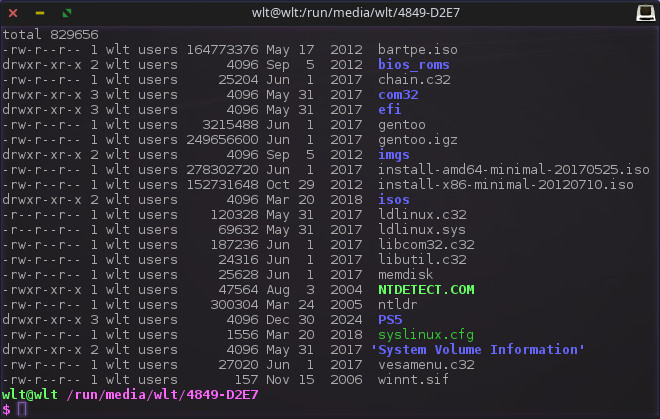
From there the rest is done the standard way, copy over the necessary files to your drives root directory, and anything else you might want to boot, as show in the example screenshot.
- chain.c32 - optional for chain booting
- ldlinux.c32 - required
- ldlinux.sys - required
- libcom32.c32 - required for menu
- libutil.c32 - required for menu
- vesamenu.c32 - optional for menu
Super simple right? Of course there is a lot more, please refer to the SYSLINUX documentation for more information.
ISOLINUX
The ISOLINUX variation of Syslinux is different than the rest, as its usage is done as part of creating
the actual ISO using the mkisofs command. You simply need to reference the ISOLINUX binary
isolinux/isolinux.bin, and a catalog file isolinux/boot.cat will be created.
From there the rest is done the standard way, copy over the necessary files to your drives
CD_root/isolinux directory, including config file named isolinux.cfg or
syslinux.cfg and anything else you might want to boot, images go into
CD_root/images and kernels including memdisk in CD_root/kernel.
- ldlinux.c32 - required
- ldlinux.sys - required
- libcom32.c32 - required for menu
- libutil.c32 - required for menu
- vesamenu.c32 - optional for menu
Then create the ISOLINUX bootable ISO image using the mkisofs command.
# make output.iso using contents of CD_root directory
mkisofs -o output.iso \
   -b isolinux/isolinux.bin -c isolinux/boot.cat \
   -no-emul-boot -boot-load-size 4 -boot-info-table \
   CD_root
Super simple right? Of course there is a lot more, please refer to the ISOLINUX documentation for more information.
PXELINUX
Syslinux PXELINUX has some of the best PXE support available, and succeeds at times when others such as GRUB fail, this includes GRUB2. If you are doing a lot with PXE, save yourself the headache and fly with PXELINUX.
To use PXELINUX you need the standard PXE environment including a DHCP server, which will serve up
the single file needed to initiate usage of PXELINUX. The following is from ISC-DHCP server
dhcpd.conf.
# tftp server address for PXE file
next-server 10.1.1.1;

# serve up the single PXELINUX file, which must be in root of the tftp directory
filename "pxelinux.0";
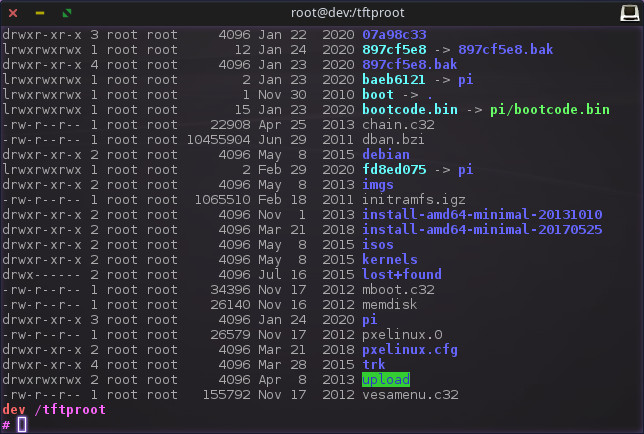
From there the rest is done the standard way, copy over the necessary files to your tftp root directory, and anything else you might want to boot, as show in the example screenshot.
- chain.c32 - optional for chain booting
- mboot.c32 - required
- pxelinux.0 - required
- vesamenu.c32 - optional for menu
Note: Raspberry Pis do not boot using PXELINUX, but can boot via PXE. This is a universal tftproot for PXE booting via PXELINUX and Raspberry Pi specific boot environment. For information on PXE booting Pis please see 04/15/2020 JaxLUG - PXE network booting Raspberry Pis (pdf) (youtube). We will make a page on such time permitting, it has been unfortunate the person who asked about it on youtube could never be responded to...
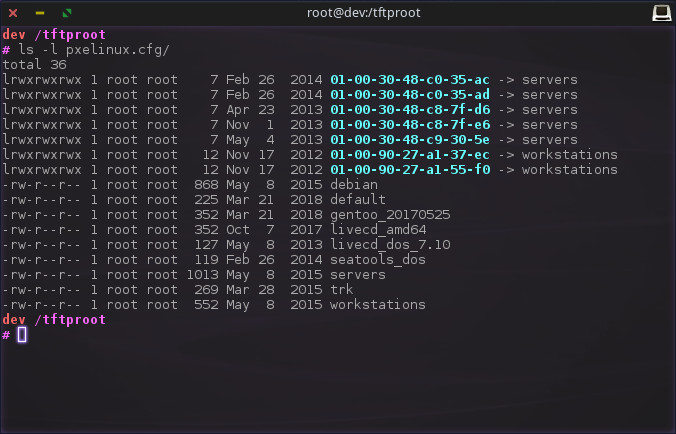
Here is an example configuration and screenshot showing MAC addresses symlinked to use specific PXELINUX
config files. PXELINUX unlike all others, uses a pxelinux.cfg directory with at least one
config file named default, show below including others. Outside of which, included files
can be named anything, and system specific use their MAC address, as shown in the example.
SERIAL 0 115200
TIMEOUT 60

UI vesamenu.c32
MENU TITLE Boot Menu

INCLUDE pxelinux.cfg/gentoo_20170525
INCLUDE pxelinux.cfg/livecd_amd64
INCLUDE pxelinux.cfg/trk
INCLUDE pxelinux.cfg/seatools_dos
INCLUDE pxelinux.cfg/debian
Super simple right? Of course there is a lot more, please refer to the PXELINUX documentation for more information.
EXTLINUX
EXTLINUX like SYSLINUX does require a small install step to write to the Master Boot Record (MBR) of the drive.
# same command on windows just use syslinux.exe and Windows drive numbers [a-z]:
syslinux --mbr --active --directory /boot/syslinux/ --install <drive>
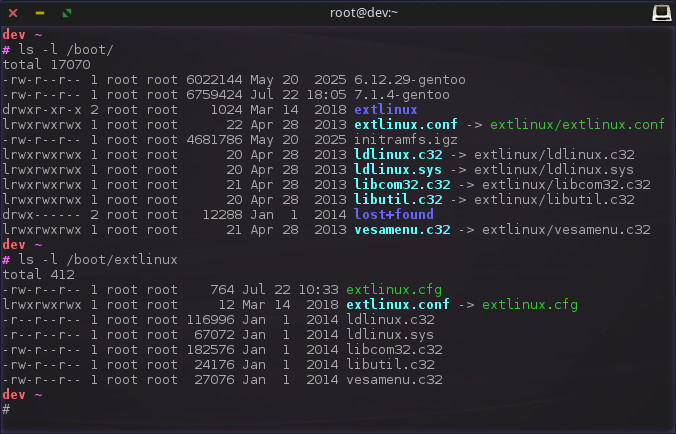
EXTLINUX uses a different configuration file named extlinux.cfg, and sometimes this can
be in a extlinux subdir. User error, per screenshot, using symlinks as a subdir crutch.
From there the rest is done the standard way, copy over the necessary files to your drives root directory, and anything else you might want to boot, as show in the example screenshot.
- ldlinux.c32 - required
- ldlinux.sys - required
- libcom32.c32 - required for menu
- libutil.c32 - required for menu
- vesamenu.c32 - optional for menu
Super simple right? Of course there is a lot more, please refer to the EXTLINUX documentation for more information.
EFILINUX
Of all the variations of Syslinux, EFILINUX is the easiest of them all. Simply rename a directory, copy over files, and off to the races you go!
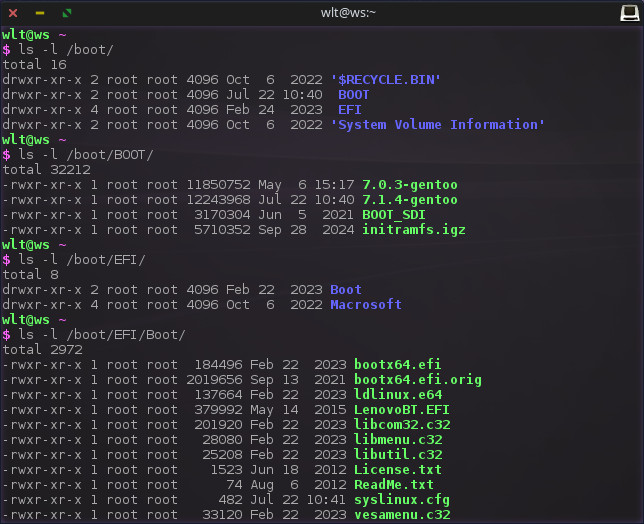
The first thing is to rename the virus directory named /boot/EFI/Microsoft, in order to
avoid that malware; you can optionally delete, it most likely will never be used again. But, just in
case you want to factory reset or dislike yourself enough to revert back to Winblows.
From there the rest is done the standard way, copy over the necessary files to your EFI partition's
/boot/EFI/Boot/ directory, and anything else you might want to boot, as show in the example
screenshot.
- bootx64.efi - required
- ldlinux.c32 - required
- ldlinux.sys - required
- libcom32.c32 - required for menu
- libutil.c32 - required for menu
- vesamenu.c32 - optional for menu
Note: If you are keeping the renamed /boot/EFI/Macrosoft directory, you also likely want
to rename and keep /boot/EFI/Boot/bootx64.efi, as show in screenshot as
/boot/EFI/Boot/bootx64.efi.orig.
Super simple right? Of course there is a lot more, please refer to the EFILINUX documentation for more information.
MEMDISK
While it is stated MEMDISK is meant to allow booting from legacy operating systems, its common modern
usage is to boot other bootable mediums such as floppy, hard disk, and ISO images, which does not always
work as intended, depending on how the booted medium interacts with the underlying system; like when
used in a LiveUSB booting a ISO or other image that does not recognize the medium, the USB drive. There
is no install, simply copy over memdisk binary, and use it as a kernel.
# from file pxelinux.cfg/livecd_dos_7.10
LABEL Dos Boot (SuperMicro Flash)
        DEFAULT
        MENU LABEL Dos Boot (SuperMicro Flash)
        KERNEL /memdisk
        INITRD /imgs/dosboot.img
Super simple right? Of course there is a lot more, please refer to the MEMDISK documentation for more information.